Product photos that actually get bookings
A phone camera is fine. How to add photos and what a good rental photo looks like.
Plan: All plansWho: Everyone
Items with photos book noticeably better — renters are choosing for a party, and they buy with their eyes. A phone camera is completely fine; here is how to get photos on and make them work.
Adding a photo#
Every product row in Inventory has an Upload photo button — click it, pick the image, done. When adding a new product you can also paste an image link in the photo URL field, but uploading after saving is usually easier.
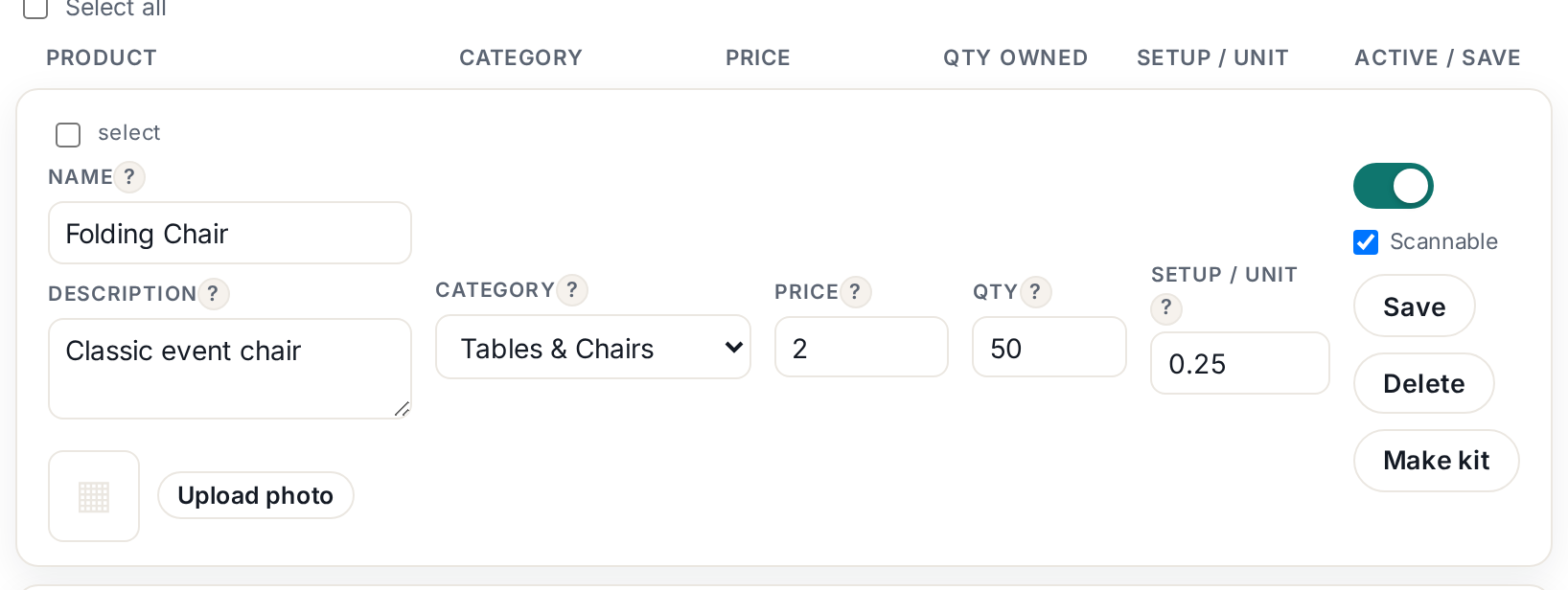 Tap to enlarge
What a good rental photo looks like#
- The item set up and clean, not folded on a shelf. A tent pitched on grass outsells a tent in a bag every time.
- Shot outdoors or in bright, even light. Overcast daylight is more flattering than harsh noon sun.
- One clear subject, shot straight-on or slightly above, with room around it.
- A real setting beats a white background for party gear — a bounce house with a yard behind it lets parents picture their own yard.
Practical notes#
- Take photos at your next few deliveries: item set up, before guests arrive. Two weekends covers most of a catalog.
- Manufacturer stock photos look like everyone else's listing (and may not be yours to use). Use your own where you can.
- One great photo per item is enough to start. Do not wait for a photographer.
More in Your inventory
Prices, per-day pricing and showing Quote insteadPrices are per unit, per day. What a blank price does, and how to handle weekend rates.Setup fees: charging for installation per unitCharge for labor separately from rent — per unit, itemized on the booking.Blackout dates: closing off daysBlock bookings for a date range — for the whole business or a single product.Locations / warehouses: stock in more than one placeTrack which stockroom holds each item and filter your list by location. Pro plan.Unit codes, QR labels and the Scannable checkboxGive each physical item its own code, print labels, and scan gear out and back in.