How do I change the text or colors on my website?
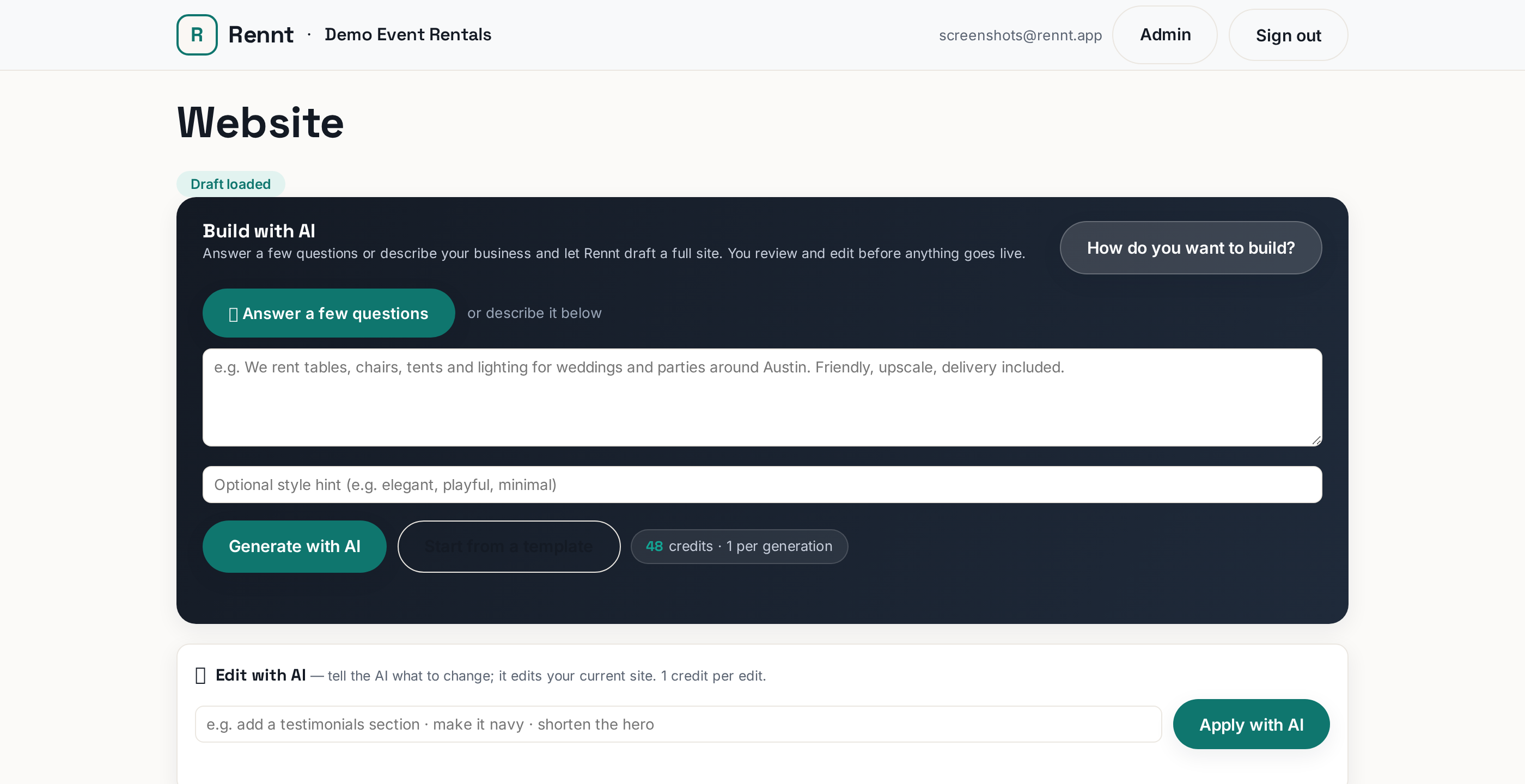
Open the Website builder and edit anything — or tell the AI what to change.
Two ways to change your site, and you can mix them freely.
 Tap to enlarge
Tell the AI what you want#
Open Website in the left menu and describe the change the way you would to a person:
- "Make the headline say we serve all of Riverside County"
- "Use warmer colors, less corporate"
- "Add a section about our weekend packages"
It rewrites that part and shows you the result. Each AI run costs one credit — and if it fails you are not charged.
Edit it yourself#
Click any text, headline or section and change it directly. Pick colors and fonts. Add or remove sections. No AI credit, no waiting.
Your catalog wires itself in#
You never add products to the site by hand. Anything Active in Inventory appears automatically, with its price and photo. Change a price in Inventory and the site follows.
Publish#
Changes are drafts until you click Publish. That is on purpose — you can rework the site over a week without customers watching you do it.
Just the logo and colors#
If you do not want to touch the builder at all: Settings → Storefront colors and your logo. That is enough to make the default storefront look like your business.